
Create a Customized Signup Page
Each department in your Manifestly account can have its own signup page. Share its URL in your intranet, wiki or onboarding documents, and anyone who fills it in joins that department on their own. Nobody has to send them an invitation.
Create the signup URL
- Open Team Management from the top navigation.
- Find the department and open its Settings, either by clicking the department name or from the three-dot menu on its row.
- Under Invitation URL, click the circular-arrow icon. Its tooltip reads Create signup invitation URL when no URL exists yet.
- In the Invitation URL dialog, click Generate link. The URL appears in the field, and the copy icon next to it copies it to your clipboard.
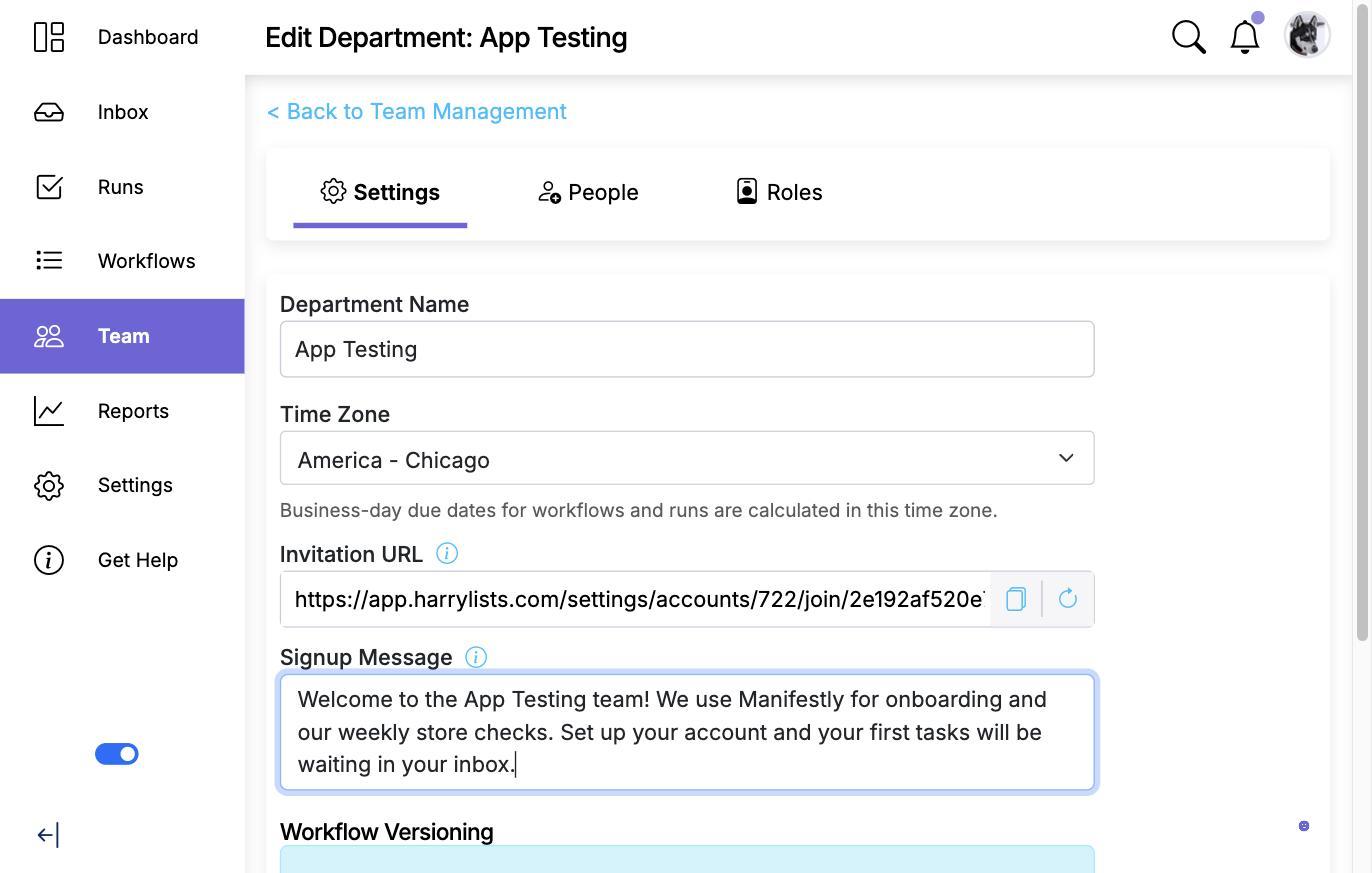
Add a signup message
The Signup Message box on the same Settings tab is shown at the top of the signup page. Use it to tell people what they are joining and why. See Customize your invitation signup message for details.
What people see
The page is titled Sign up to join followed by the department name, with your signup message underneath. It asks for a name, an email address and a password, and shows how many people are already in the department.
If your account restricts sign-in to Google or to your SAML identity provider, the form is replaced by the matching sign-in button, so new people join with the same method everyone else uses.

What happens after signup
- The person is added to the department with the User role, signed in, and taken to their dashboard. Change their role afterwards from Team Management if they should be an Admin, Member or Limited user. See Managing Users and Their Permissions.
- Someone who already has a Manifestly login can click Already have an account? and sign in. If they belong to your account in another department, they are added to this department as a User and see the message You've been granted access to followed by the department name.
- Someone signed in to a different Manifestly account is not added, and sees You're not a member of followed by your account name.
Replace a URL that has leaked
Open the Invitation URL dialog again and click Regenerate link. A new URL is issued and the old one stops working immediately: anyone opening it is sent to the sign-in page with the notice The link may be expired or is not valid. Share the new URL wherever the old one was published.
Video walkthrough
This video shows a department's signup page being created and shared, and someone joining the account through it.