
Customize your invitation signup message
When you add people to your Manifestly account, they receive a welcome email, or a Slack message if you invite them through Slack. Each department can add its own message to that invitation, so new people hear from you rather than from a generic template.
The same message is shown at the top of the department's signup page, if you share one. See Create a Customized Signup Page.
In the invitation email it looks like this:

Set the message
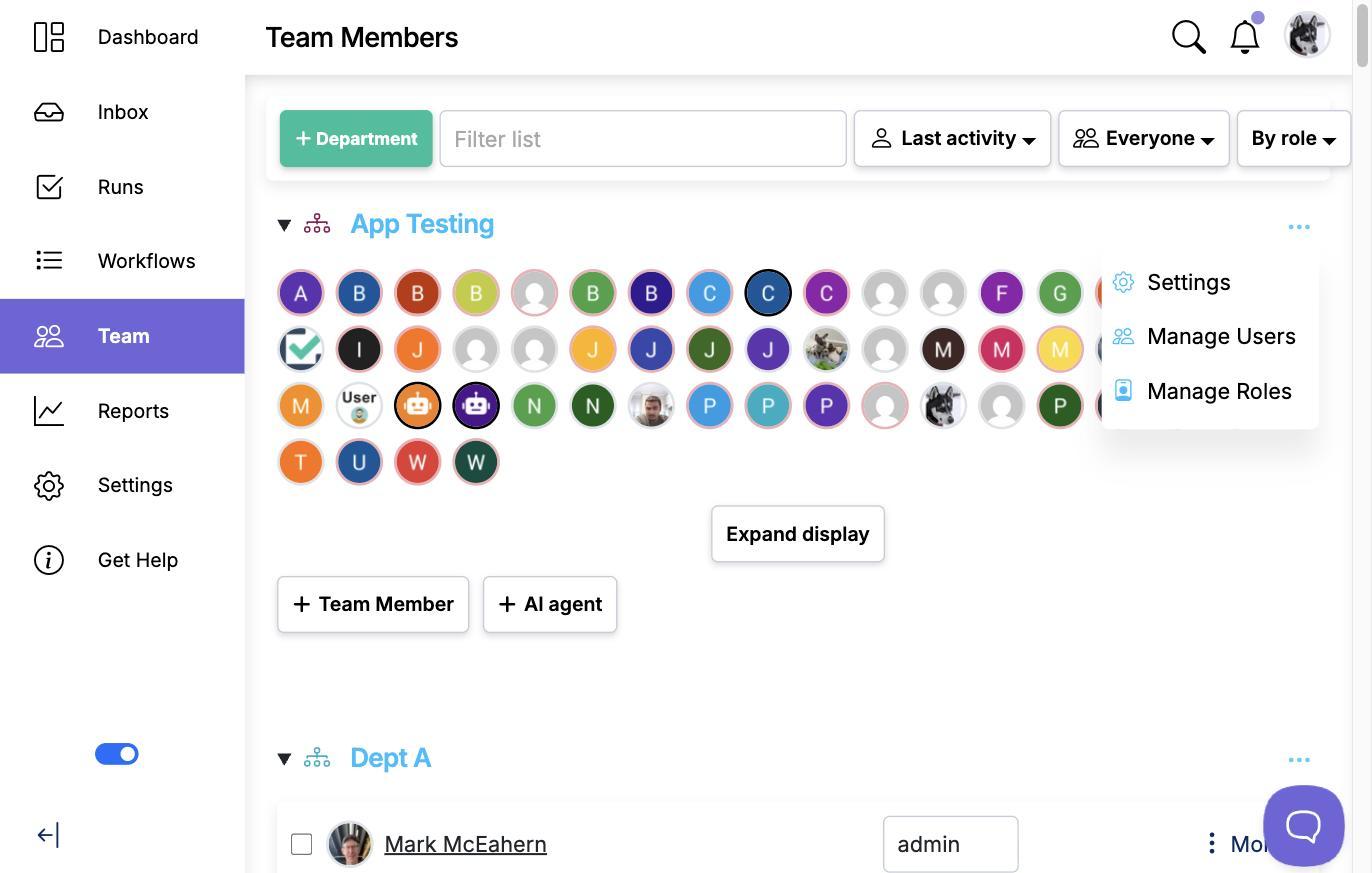
- Open Team from the side navigation, or go to app.manifest.ly/settings/users.
- Find the department and open its Settings from the three-dot menu at the right of its heading.
- Type your message in the Signup Message box and save. The message is plain text and can be up to 1,000 characters.
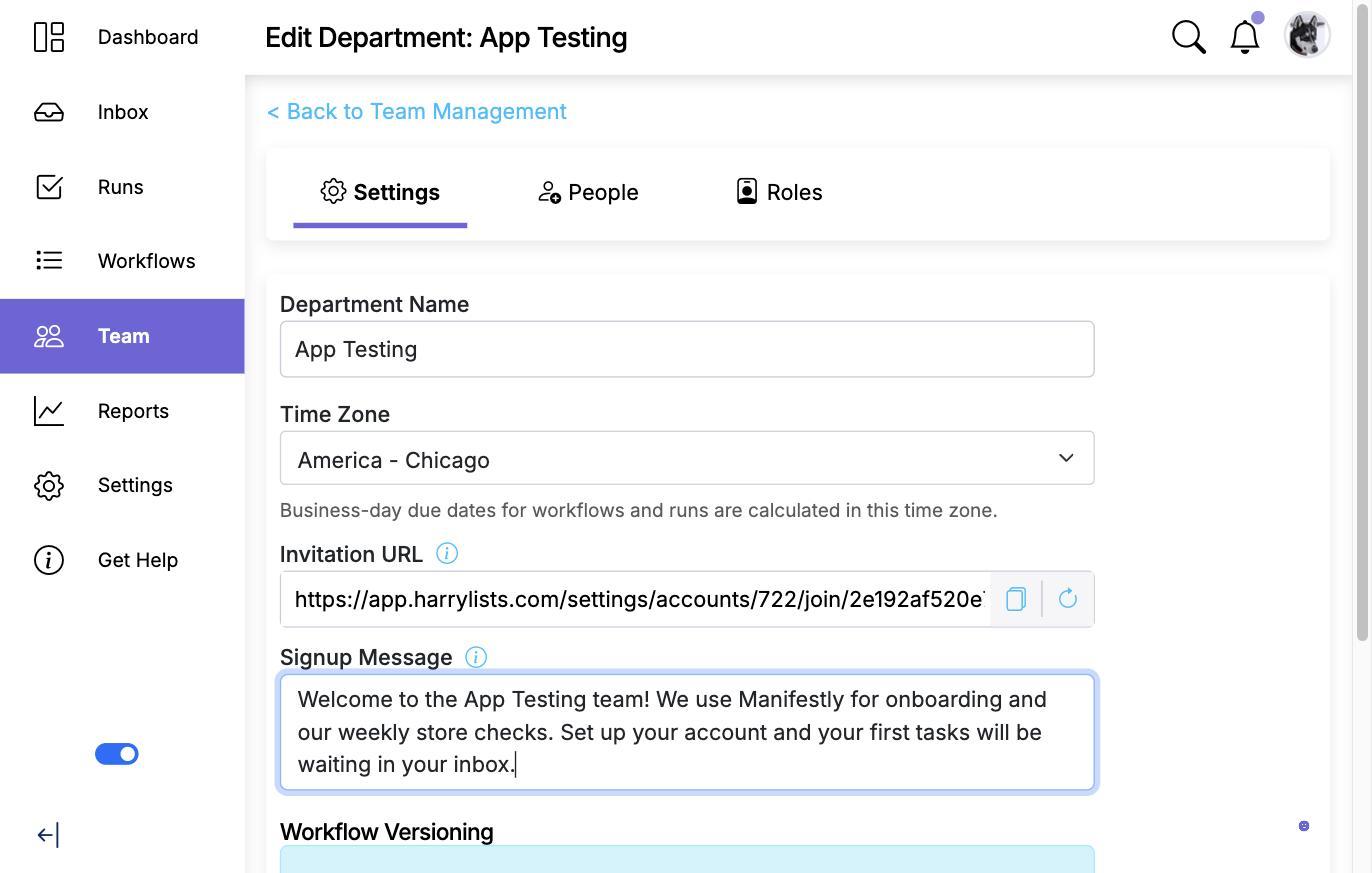
You can also change the message from the Add Team Member dialog while inviting someone. The Signup Message field there is the same department setting, so an edit made while inviting one person applies to everyone invited to that department afterwards.
Each department has its own message. Leave the box empty to send the standard invitation.