
Adding review and approval steps
An approval step puts a checkpoint in a workflow: work done earlier has to be reviewed and approved before the run moves on. Use it wherever somebody signs off on somebody else's work, such as a manager approving a discount, a second pair of eyes on a payment, or a supervisor confirming a safety check before the equipment is used.
An approval is not just a step somebody ticks. It names the steps it reviews, it can hold the rest of the run until it is decided, and it can be rejected as well as approved.
Turn a step into an approval
- Open the workflow for editing.
- Add the step where the sign-off belongs, after the work it reviews.
- Click the approval icon on that step.
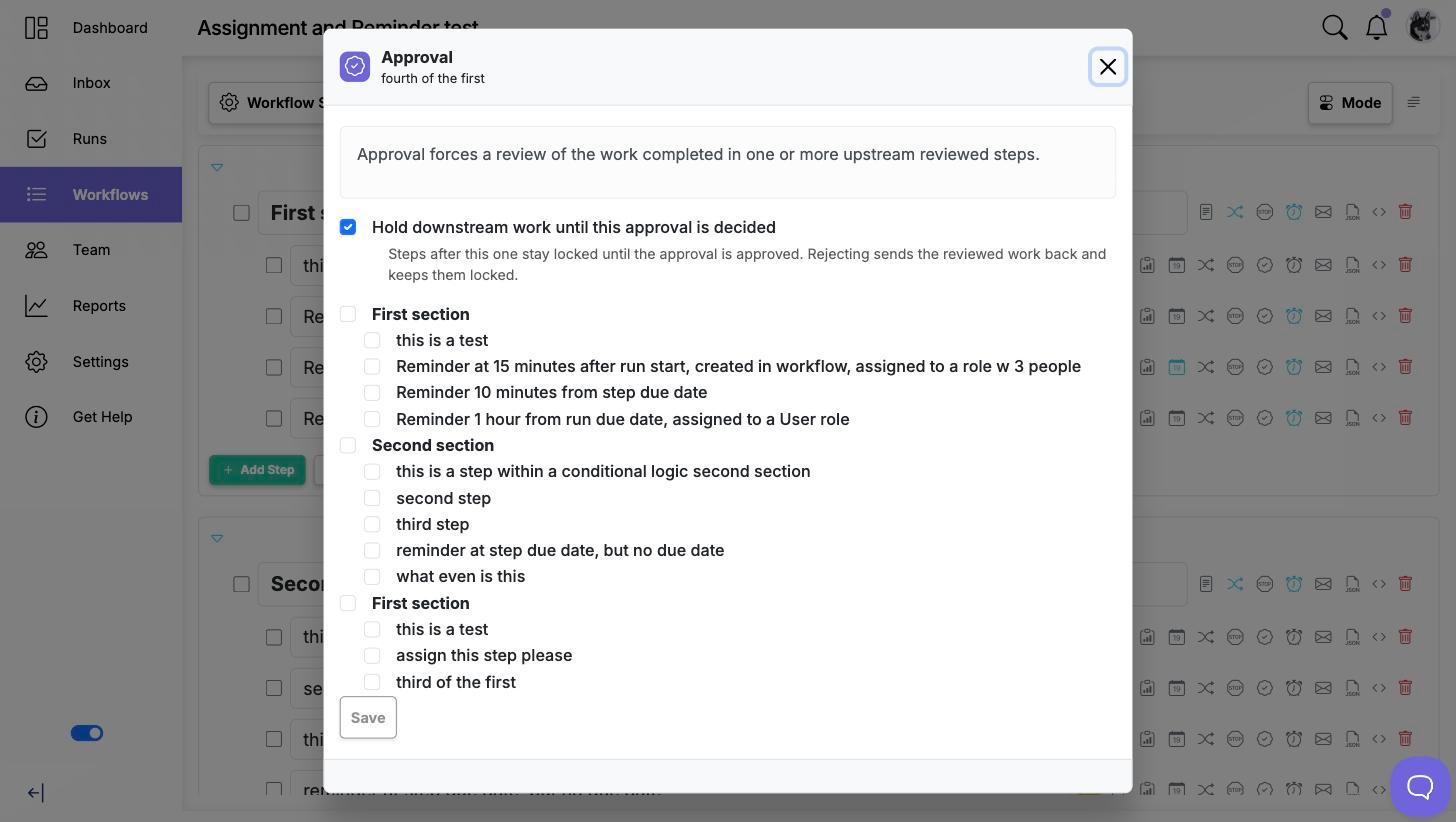
- Tick the steps this approval reviews. Only steps above it are offered, because an approval can only review work that has already happened.
- Save.
The list of reviewable steps is grouped under its section headings, and ticking a section heading selects everything in it, which is the usual case: one approval covering a whole phase of the work.
Holding the rest of the run
Hold downstream work until this approval is decided is on by default. With it on, every step after the approval stays locked until someone approves it. Rejecting sends the reviewed work back and keeps the later steps locked.
Turn it off when the approval is a record rather than a gate, and the rest of the work should carry on regardless.
Approving and rejecting in a run
In a run, the approval step becomes a decision: approve it, or reject it with a comment. When rejecting, you can name which of the reviewed steps are the problem, so the person picking it up knows what to redo rather than guessing.
Some rules worth knowing before you build one:
- All the reviewed steps have to be complete before the approval can be decided.
- Whoever completed a reviewed step cannot approve it. This is the four-eyes rule, and it is enforced rather than advisory. If one person does the work and is also the named approver, the approval cannot be decided, so assign it to someone else.
- Who may decide it is the person the step is assigned to, or any admin if it is unassigned.
- A decided approval reopens by itself if any reviewed step changes afterwards. The sign-off always refers to the work as it stands.
- Approving completes the step, so anything the step itself requires, such as a required data field or required subtasks, has to be filled in first.
Undoing an approval
An approval given by mistake can be retracted by the person who gave it, or by an admin if the step is unassigned. The run returns to waiting for a decision.
An approval that reviews nothing
An approval step with no reviewed steps ticked is incomplete, and the editor marks it with a warning icon reading Invalid approval, it reviews no steps. It is ignored in runs rather than blocking them. This usually happens when the steps an approval used to review were later deleted, so it is worth checking after any large edit.
To turn an approval back into an ordinary step, open the same dialog and click Disable approval.
Video walkthrough
This video walks through adding review and approval steps to a workflow.