
Conditional Logic in Workflows
Most workflows have parts that only apply some of the time. A refund section that only matters when the customer asked for one. An export approval that only applies outside the country. Conditional logic lets you keep all of it in one workflow and show each part only in the runs where it belongs, instead of maintaining several near-identical workflows or asking people to ignore the steps that do not apply to them.
A rule always has the same shape: this step is shown when that step's answer is such-and-such. Until the answer matches, the controlled step is not applicable, so nobody is asked to do it and it does not count against the run.
What you need first
A rule reads an answer, so the controlling step needs a data collection field on it. Add one before writing the rule. See How to collect data with your workflows.
A list field is the usual choice, because it gives the person a fixed set of answers and gives you a fixed set of values to write rules against.
Create a rule
- Open the workflow for editing.
- Hover over the step you want to control, and click the conditional logic icon (the crossed arrows) in its row.
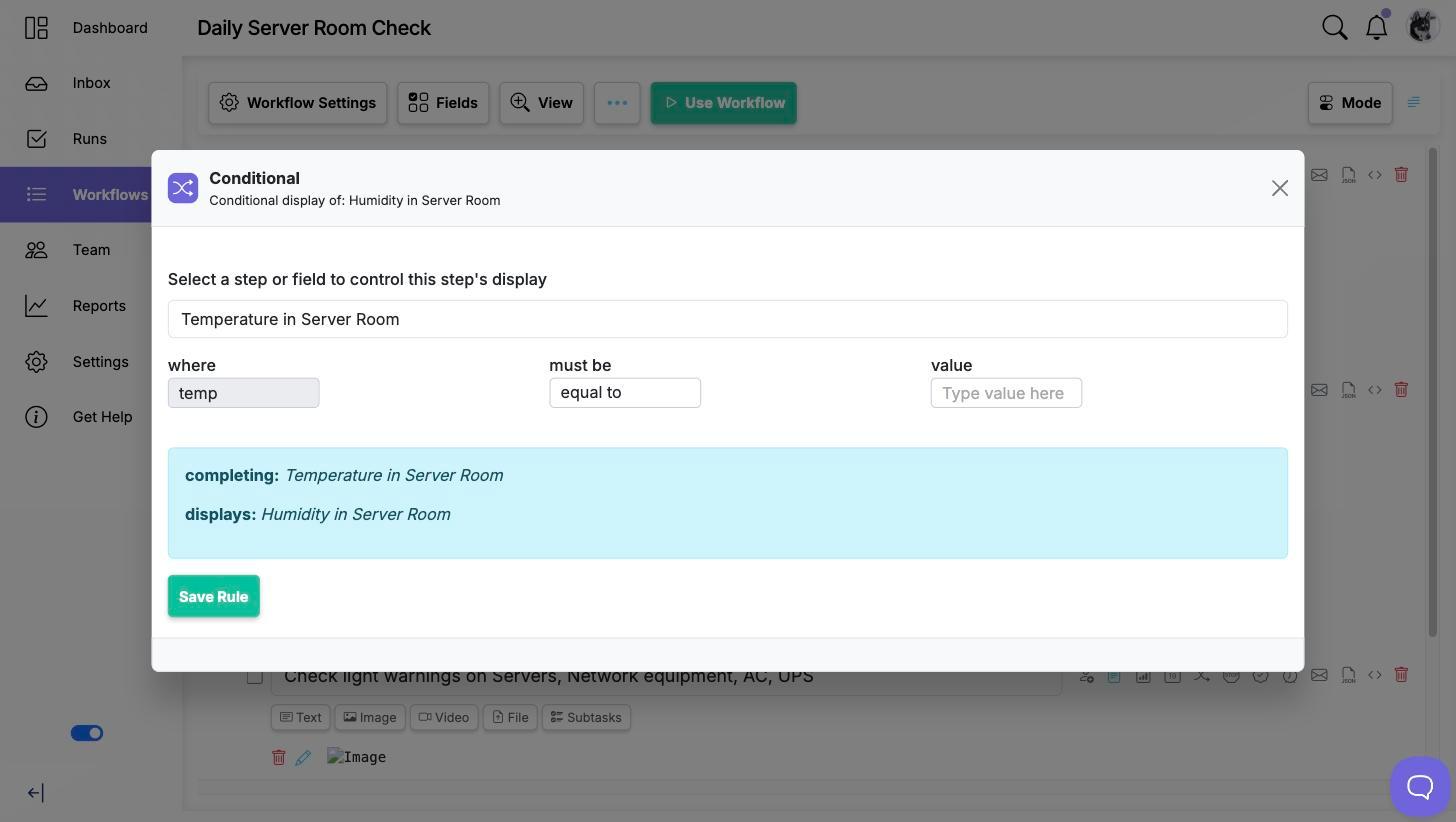
- The dialog offers both directions. Choose Add a step that controls this to gate the step you started from, or Add steps this step controls to start from the question and tick every step its answer should gate.
- Pick the controlling step or workflow field.
- If that step collects more than one value, choose Which data field?.
- Set must be to the comparison you want, and enter the value.
- Read the plain-English summary in the blue box, then click Save Rule.
Gating a whole section
Put the rule on the section heading rather than on each step inside it. Hiding the section hides everything in it, which is both less work to set up and less to keep in step when you add a step to that section later.
Which comparisons are available
The must be list changes to match the kind of data the controlling field collects:
- Choose from list and Choose from Data Table: equal to, does not equal, includes
- Number: equal to, does not equal, less than, less than or equal to, greater than, greater than or equal to
- Date and Date & Time: equal to, different than, before, before or equal to, after, after or equal to
- Short text, Long text, Email, Phone Number and Website: equal to, does not equal
Every field type also offers is blank and is not blank, which test whether the person answered at all rather than what they answered. For an upload field these are the only comparisons available, so the rule becomes "shown once a file has been uploaded".
includes is the one that lets a single rule accept several answers at once. See Logical OR using an "includes" operator in conditional logic rules.
When a rule is evaluated
A controlled step stays hidden until the controlling step has been completed and its answer matches. Completing the controlling step is part of the test, not just answering it, so a rule never fires off a half-finished answer someone is still typing.
If the answer is changed later, the controlled step appears or disappears to match. Steps hidden by a rule are not counted in the run's progress, so a run does not sit at 80 percent forever because of steps that never applied.
More than one rule on a step
A step can be controlled by several rules. You choose whether all of them have to be true or any one of them is enough. See Using conditional AND and conditional OR to control display of sections and steps.
Reviewing every rule in a workflow
The workflow has a conditional rules page listing every rule in it, grouped by the step each one controls. It is the fastest way to audit logic you set up months ago, and to spot a step whose rule points at a question that has since been removed. The editor warns you at the top of the workflow when a rule has become invalid that way.
Video walkthrough
This video walks through building a conditional logic rule.