
Take actions on multiple workflows in bulk
The Workflows list lets you act on several workflows at once. Select the ones you want, and a panel opens on the right where you can archive them, add a tag to all of them, or remove a tag they share.
Narrow the list first
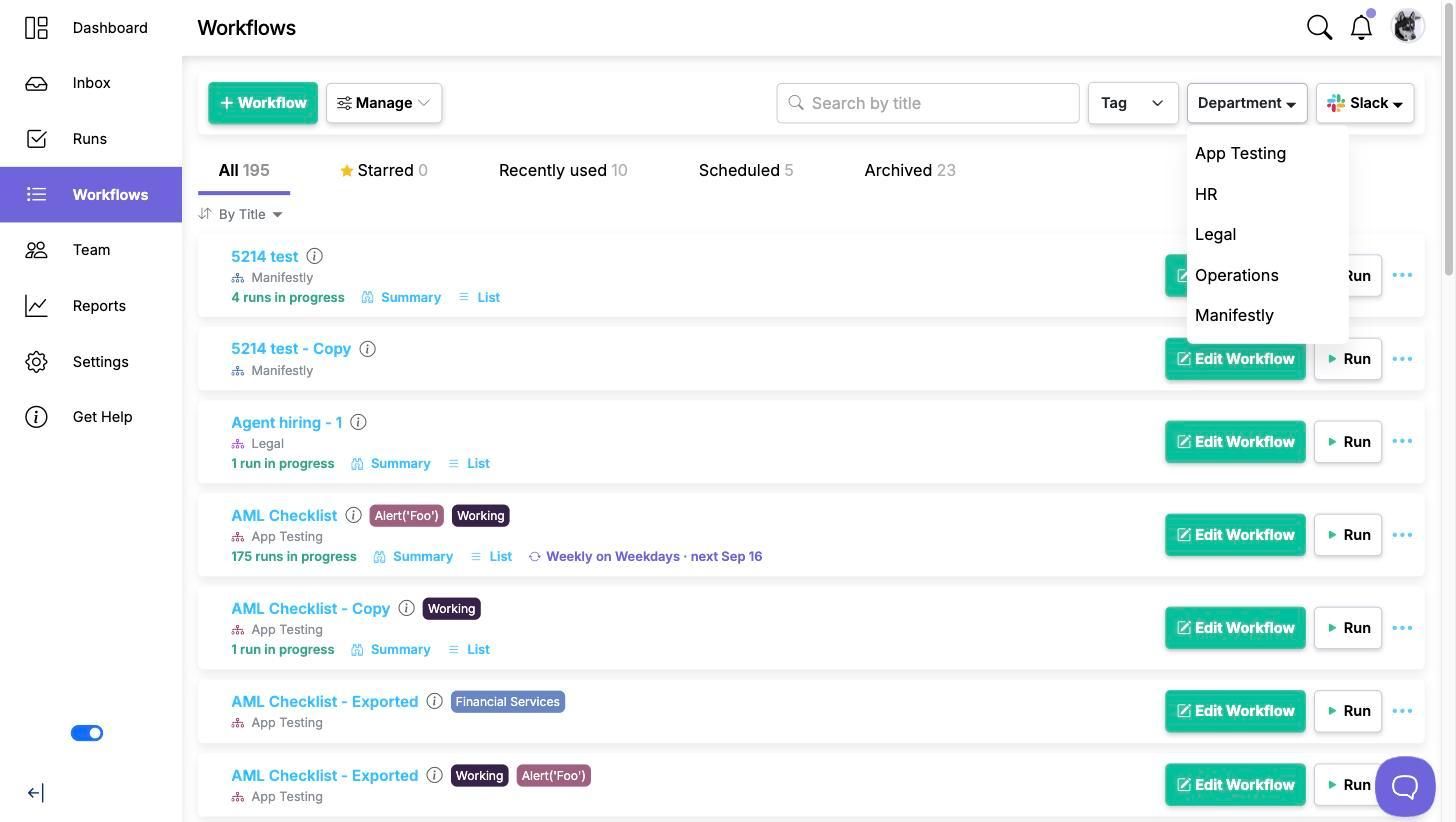
Bulk actions apply to the workflows you tick, so the quickest way to work is to filter the list down until the rows you want are the only ones on screen. The toolbar above the list gives you four ways to do that, and they combine:
- Search by title in the search field.
- Filter by tag, which appears once any workflow in the account is tagged.
- Filter by department, which appears once you can see more than one department.
- Filter by Slack channel, which appears if your account is connected to Slack and at least one workflow posts to a channel.
Select the workflows
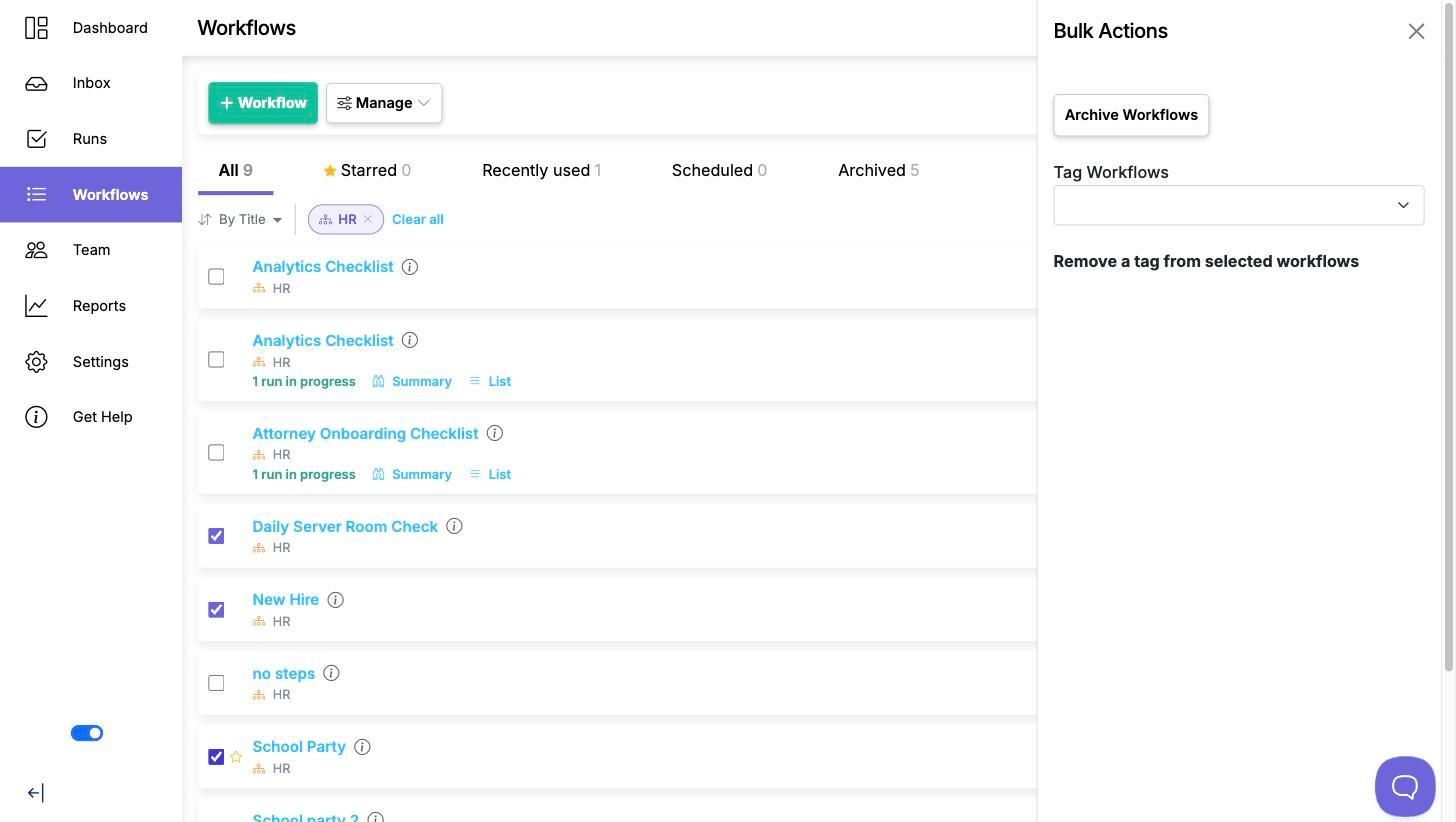
Filtering by a single department is what turns selection on. The row checkboxes are not shown while the list is set to all departments, so pick one department from the filter first. This is the step people most often miss when the checkboxes seem to be missing.
- Filter the list to one department.
- Tick the checkbox at the left of each workflow row.
- The Bulk Actions panel slides in from the right as soon as the first box is ticked.
A checkbox appears only on workflows you are an admin of in that department, and only on workflows that are not already archived. If a row has no checkbox, that is why.
Archive the selected workflows
Click Archive Workflows in the panel. The button reads Archive Workflow when a single workflow is selected, which is the panel’s only indication of how many rows you have ticked, so re-check the list before clicking. Archiving takes a workflow out of the list without deleting it, and its runs are untouched. You can bring an archived workflow back at any time. See Archiving and Restoring Workflows.
Tag the selected workflows
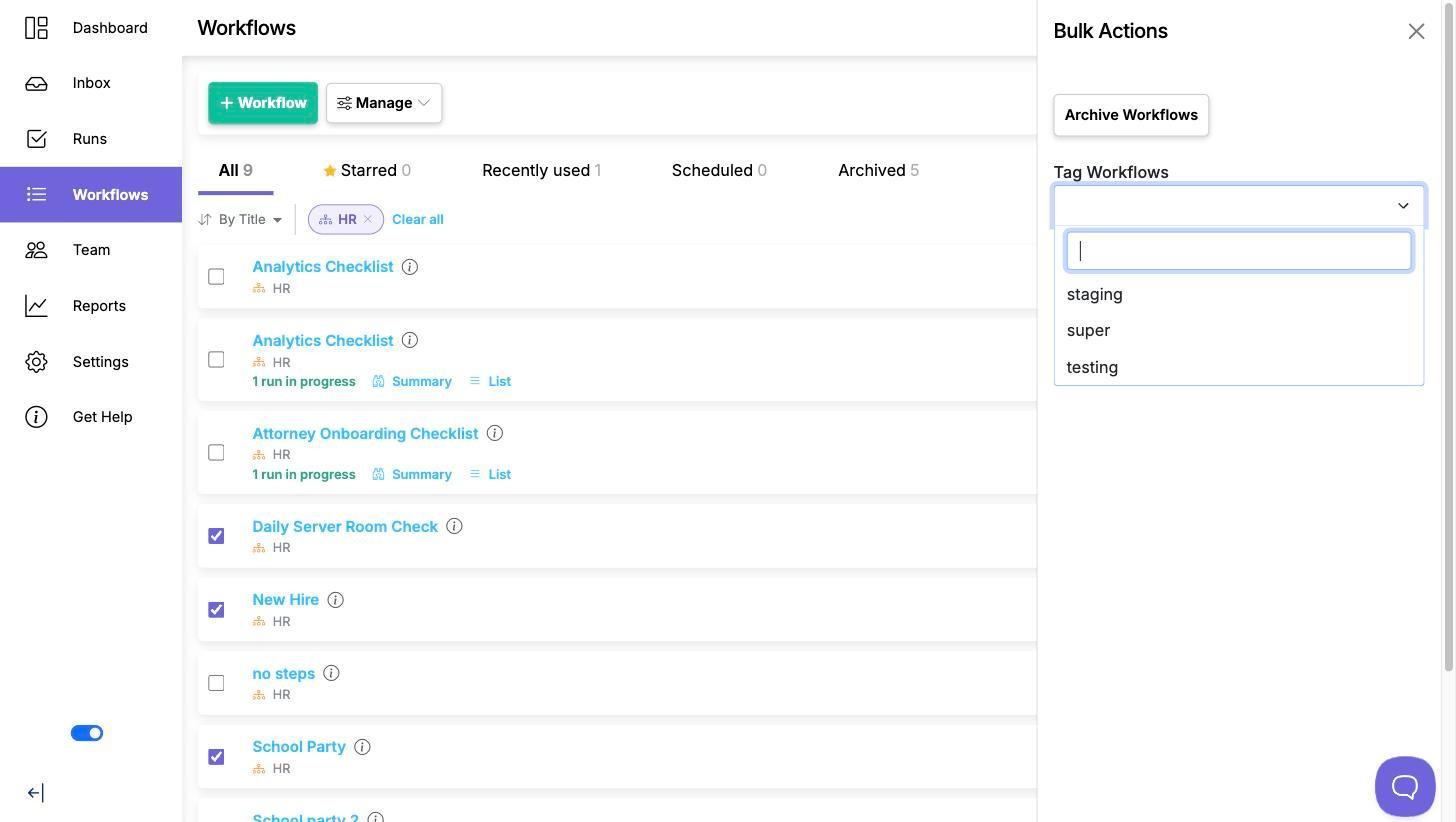
Under Tag Workflows, pick a tag from the dropdown. The tag is applied as soon as you choose it, with no separate save step. If the tag you want does not exist yet, type it into the dropdown to create it.
Tags are the main way to group workflows across departments, and they carry through to runs. See Organizing Workflows and Runs with Tags.
Remove a tag
Below the tag dropdown, a Remove button appears for every tag carried by any workflow in your selection. Click one and that tag comes off all of the selected workflows that have it.
Because the buttons list every tag in the selection rather than only the ones every workflow shares, check the list before clicking. Selecting one extra workflow can add a tag button you did not expect.
What gets changed
All three actions apply only to workflows you have permission to edit, and because a checkbox is only drawn on those, you cannot accidentally select one you may not change. Selection is also per department: the filter that makes the checkboxes appear keeps every action inside the one department you are looking at.
Video walkthrough
This video walks through filtering the workflows list and acting on several workflows at once.