
Guest Users
Guest users let you bring external people into a single run: a client who signs off on a deliverable, a contractor who completes a few steps, an auditor who needs to see what was done. Guests are ideal for people who need limited access to certain tasks without becoming part of your account.
Guests do not sign in to Manifestly. They click the link you share with them and land on the run.
What a guest is
- A guest is free. Guests never count towards your paid users.
- A guest belongs to one run. Each guest link opens exactly that run and nothing else in your account.
- A guest has the Limited role in the run's department, so they can work on steps in that run but cannot browse workflows, other runs or your team. See What is a 'Limited' user?.
- Only Admins and Users can add guests to a run.
Add a guest to a run
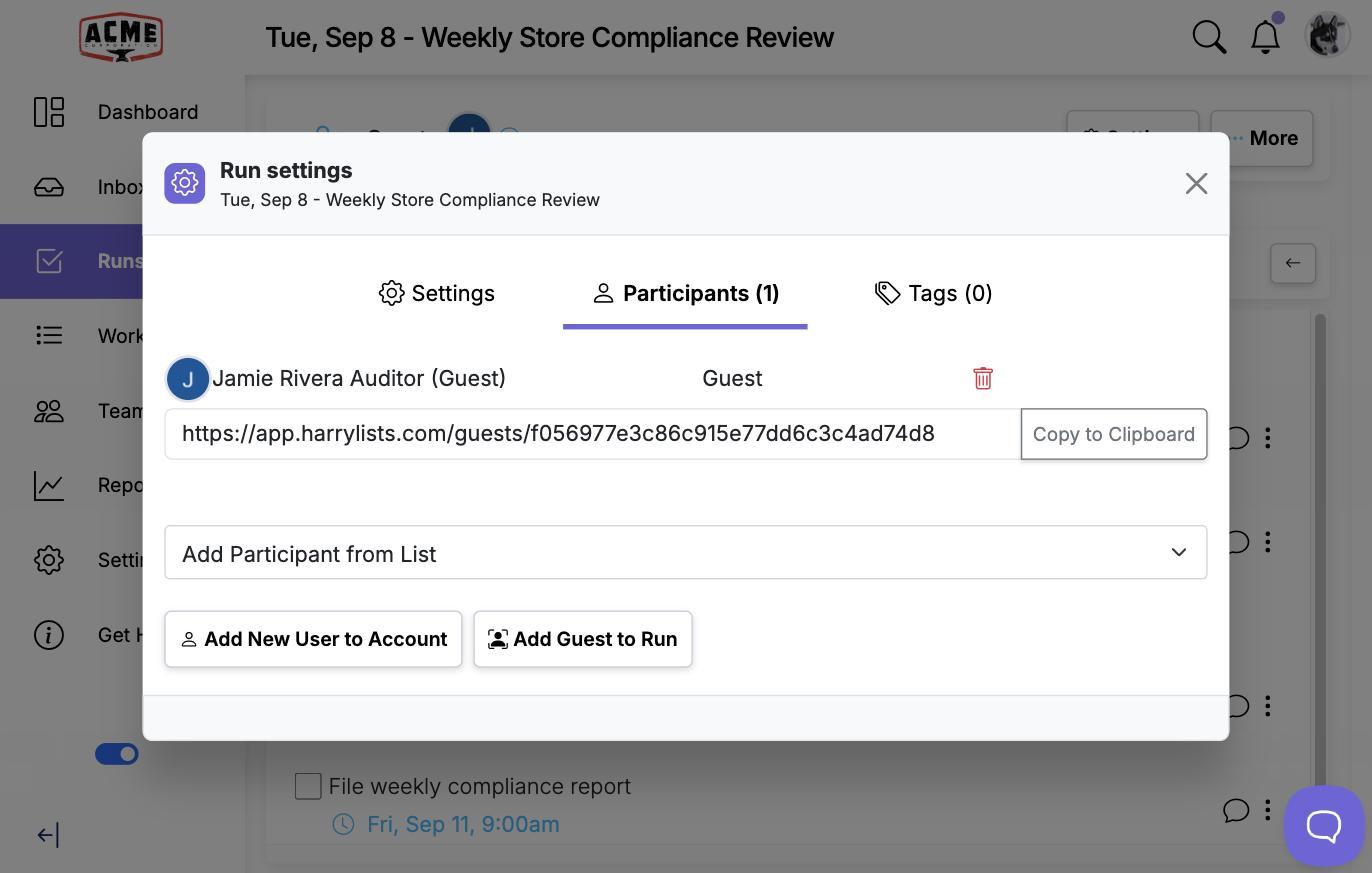
- Open the run and click the add person icon at the left of the run header. The Run settings dialog opens on its Participants tab.
- Click Add Guest to Run.
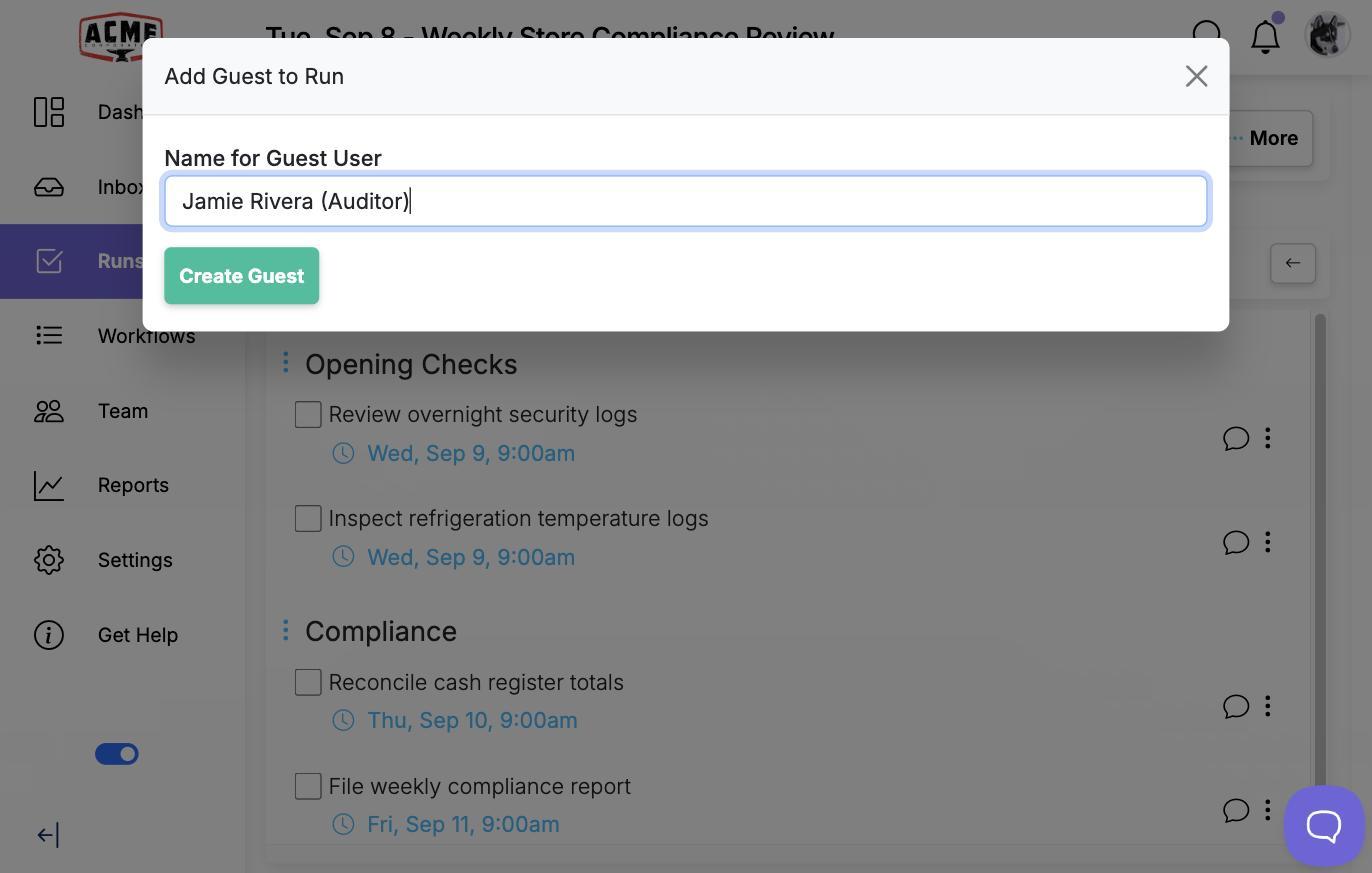
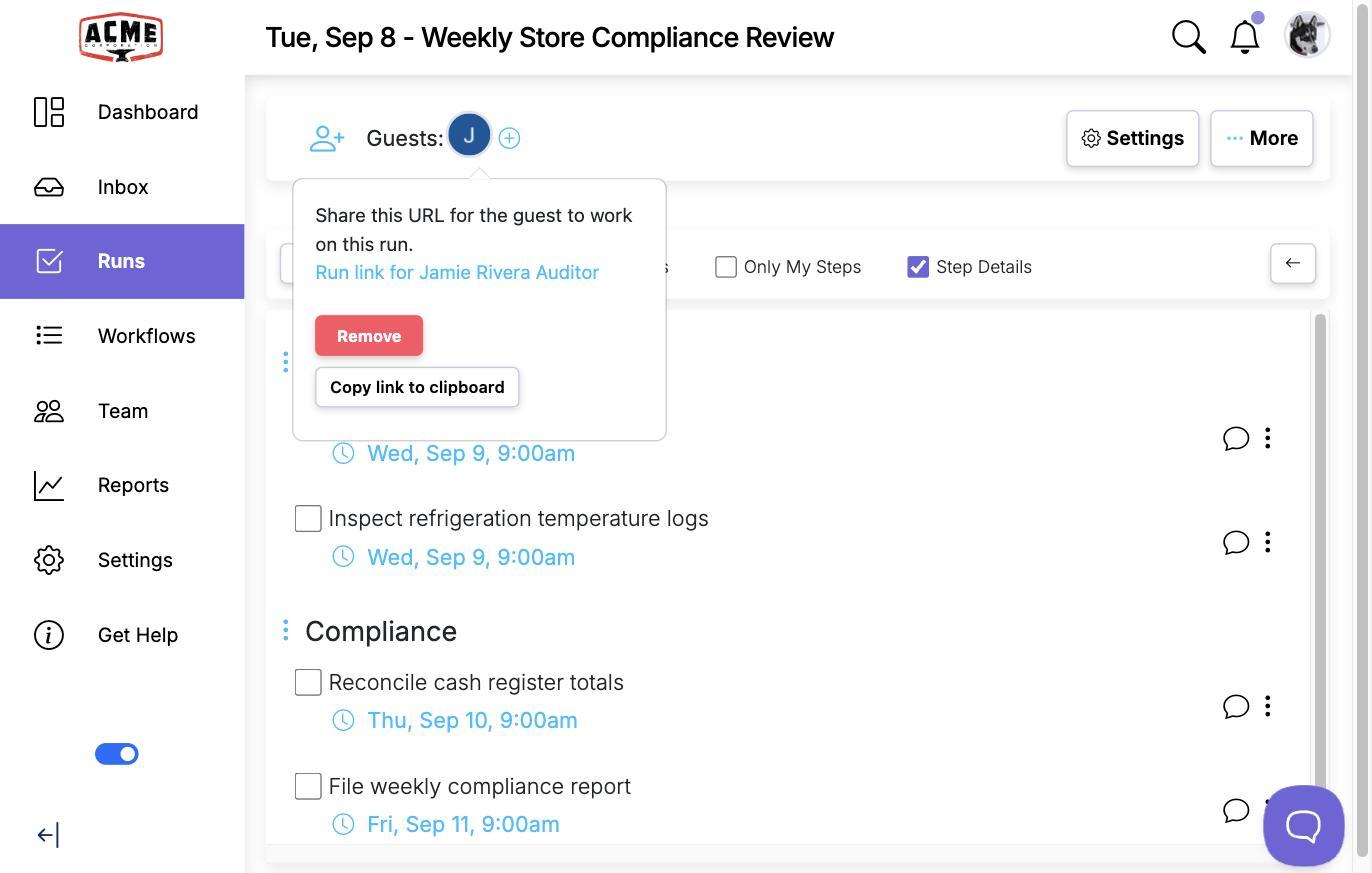
- Enter a Name for Guest User and click Create Guest. The guest appears in a Guests list in the run header with their own avatar, and a + icon beside that list adds further guests directly.
You can also add a guest while starting a run, from the Add Guest to Run button on the new run form.
Assign steps to the guest
Assign steps to a guest the same way you assign them to anyone else in the run. See Assign people to specific tasks. The guest only ever has this one run, so there is no inbox or dashboard on their side; the run page itself is where they work.
Show the guest only their steps
By default a guest sees the whole run and can complete any step that is not assigned to someone else. To limit them to the steps you assign, turn on Hide all but assigned steps from limited, member, and guest roles in the workflow's settings. It applies to every run of that workflow, including this one, and the guest then sees and completes only their assigned steps.
Share the link
- Click the guest's avatar in the Guests list. A popover opens with Run link for the guest's name.
- Click Copy link to clipboard and send the link however you like.
The Participants tab of Run settings lists each guest too, with their link, a Copy to Clipboard button and a remove icon.
Whoever opens the link acts as that guest, so treat it like a password. Before sharing, open it yourself to confirm the guest will see what you intend. Because you are signed in, Manifestly first shows You are currently signed in to Manifestly as your name, with an Open Site as button for the guest and a cancel link. Opening as the guest signs you out of your own session, so a private browser window is the more convenient way to check.
What the guest sees
The link opens the run directly, with no sign-in and no account setup. The guest sees the run's steps, the ones assigned to them if you turned the setting above on, and a Sign Out button. Once they complete their last assigned step, they are taken to the run's completed page.
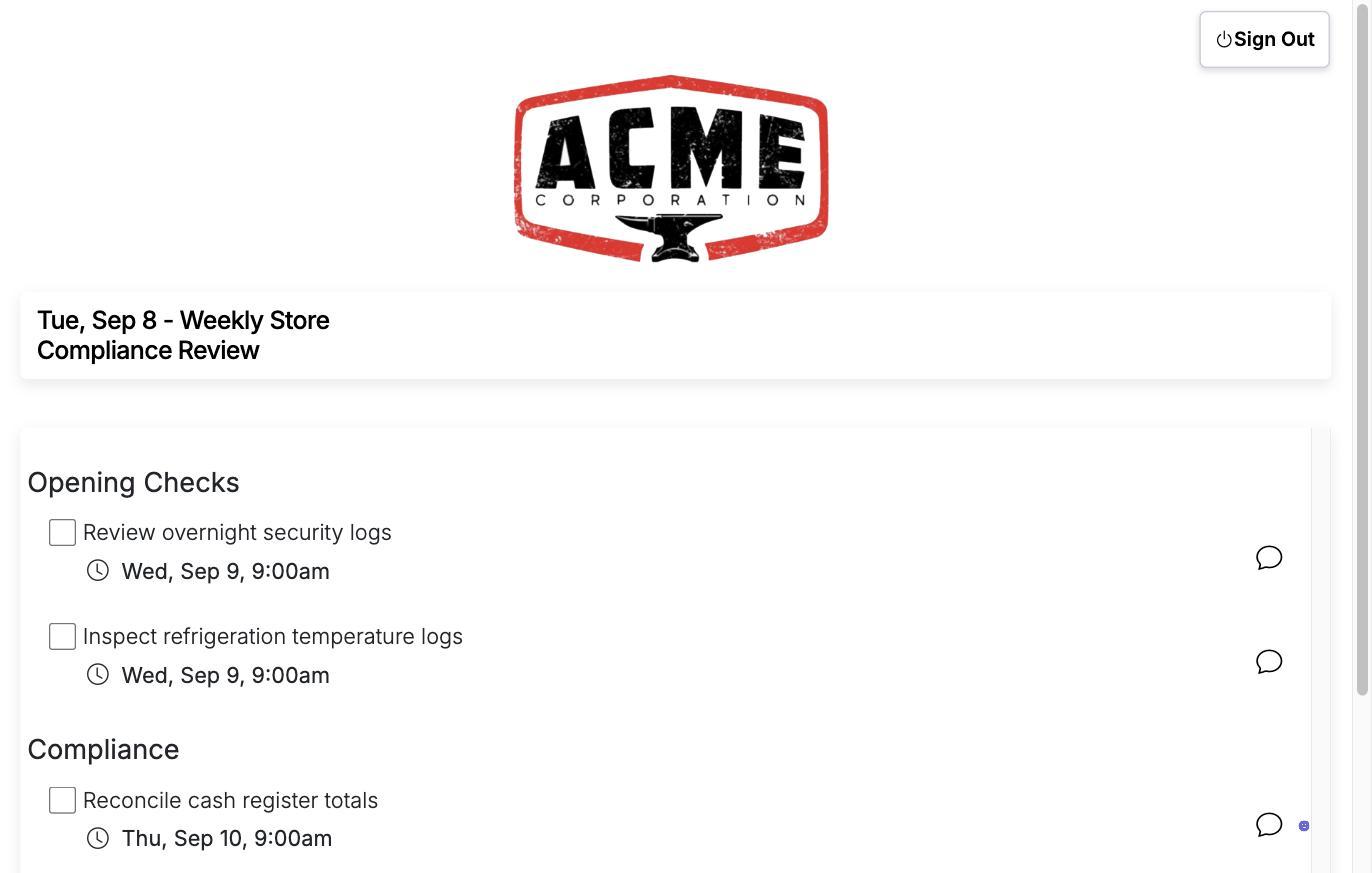
This workflow does not hide unassigned steps, so the guest sees every step in the run.
Remove a guest or end their access
- Open the guest's popover and click Remove. The guest is taken off the run and their link stops working.
- A guest link only works while the run is in progress. Once the run is completed, closed or archived, the link sends the guest to the sign-in page with the notice That run is no longer valid.
Monthly limit
An account can create 50 guests per calendar month, each tied to one run. The Add Guest to Run dialog tells you when the limit has been reached.
Video walkthrough
This video shows a guest being created, assigned steps and invited to a run, and what the guest sees when they open the link.