
Using the Runs list page
The Runs page is every run in your account in one list. It is where you find work to pick up, and where you do anything that affects a lot of runs at once.
Finding the runs you want
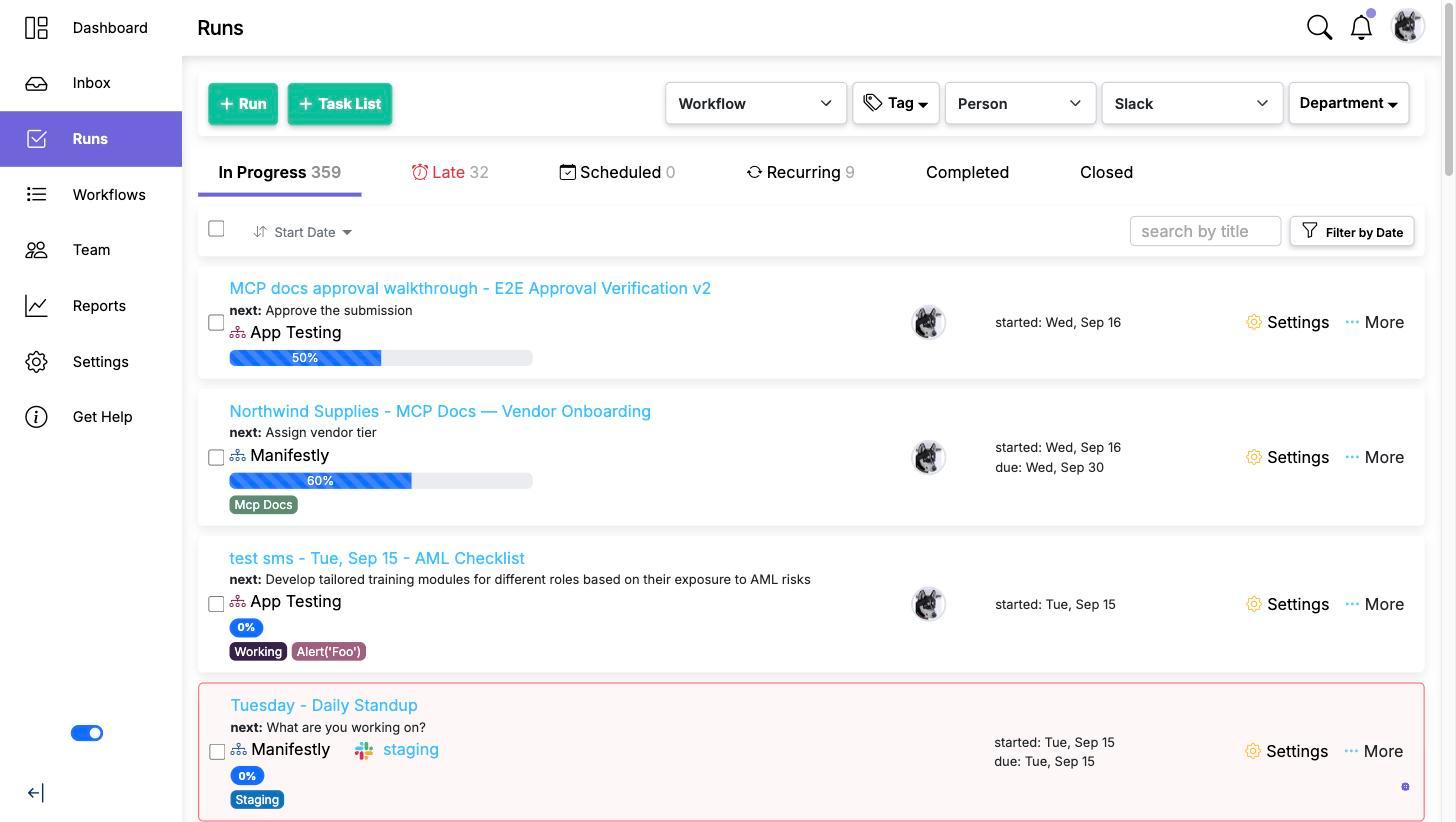
The list is long by design, so start by narrowing it. You can filter by status, by workflow, by department, by tag, by date, by who is assigned, and by the data collected in steps.
That last one is worth knowing about: filtering on collected data lets you ask questions like "which runs recorded a failed inspection", which no amount of scrolling will answer.
The tabs across the top split the list by state: In Progress, Late, Scheduled, Recurring, Completed and Closed. Scheduled and Recurring are not the same thing: Scheduled holds individual runs dated to start later, Recurring holds the schedules that keep producing runs.
What you can do in bulk
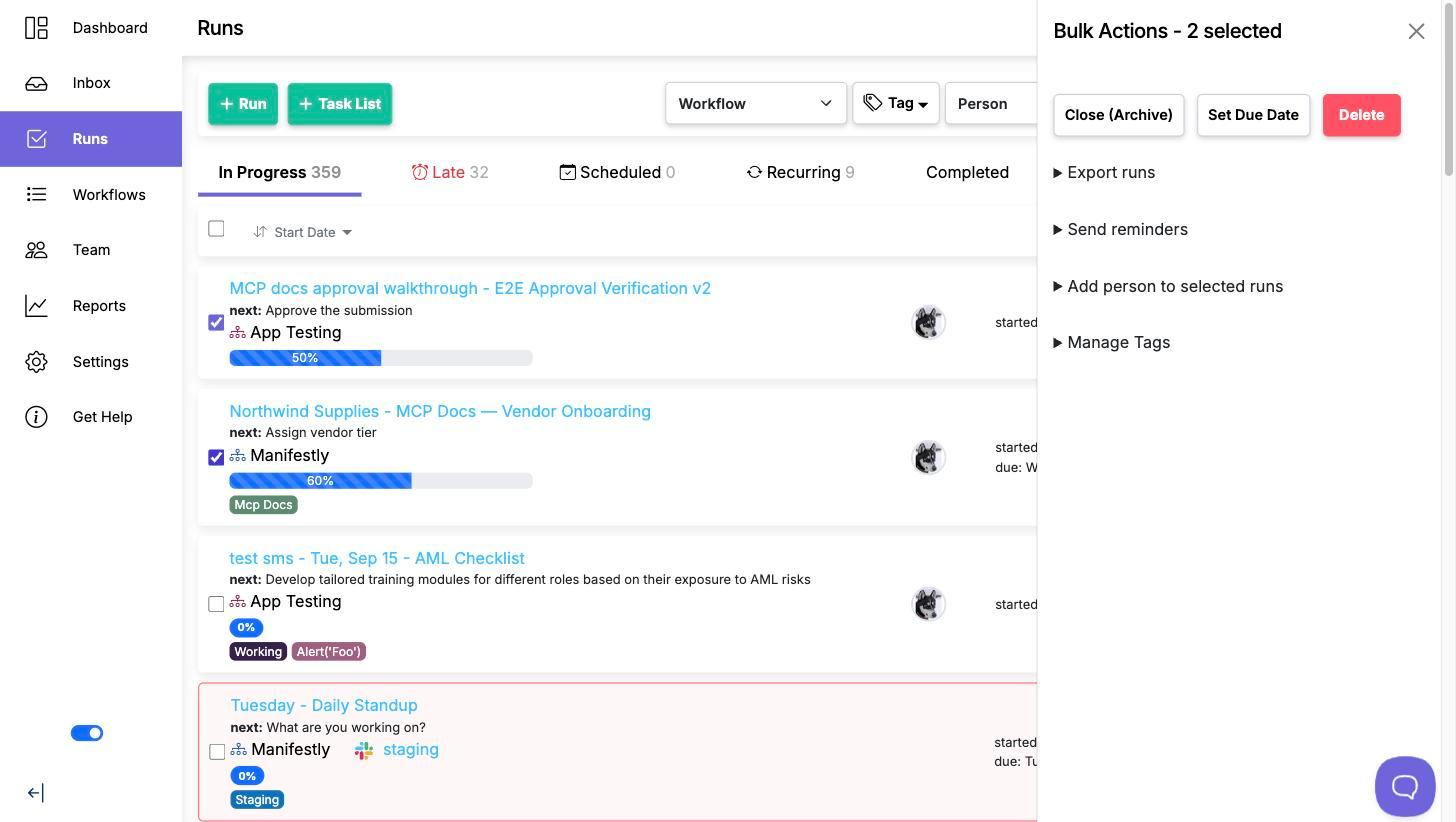
Tick the runs you want and the Bulk Actions panel opens, headed with how many you have selected. From it you can:
- Close (Archive) them, to clear finished or abandoned work out of the view. See Archiving old runs.
- Set Due Date on all of them at once.
- Delete them.
- Export runs for analysis elsewhere.
- Send reminders to people sitting on late work. See Bulk Run Reminders.
- Add person to selected runs, to put someone on several runs in one action. See Bulk adding users to runs.
- Manage Tags, adding or removing them. See How to add or delete tags of runs in bulk.
Filter first, then select. Filtering to exactly the runs you mean and then selecting all of them is safer than ticking rows out of a mixed list.
A habit worth having
Filter to in-progress runs that are past their due date once a week. That list is the honest state of the work, and it is usually shorter than people fear and more actionable than a dashboard.
Video walkthrough
This video walks through the Runs list page.