
Embedding links, images, videos, and files in a workflow.
A step is more than a line of text. Each step can carry its own details: written instructions, an image, a video, a file to download, or a link out to another system. This is how a workflow becomes the documentation for the work, instead of pointing at documentation kept somewhere else.
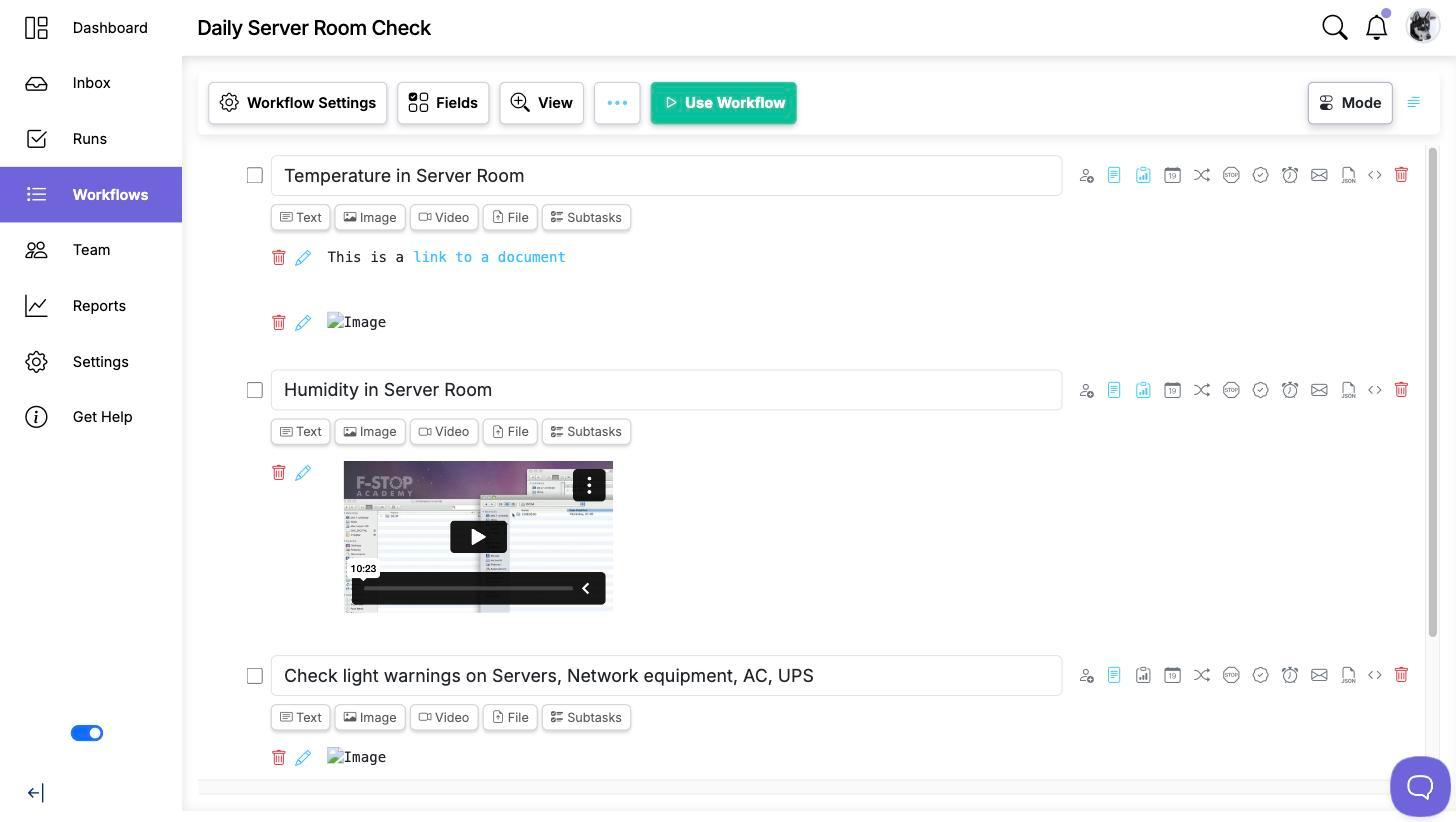
Open the details for a step
- Open the workflow for editing.
- Hover over the step and click the icon to add details, or click the step to open its panel.
- Choose what to add: Text, Image, Video or File.
A step can hold as many of these as you need, in any combination, and you can drag them into the order you want. Everything you add here appears to the person working the step when the workflow is run.
Text
Use a text block for the instructions themselves. Text blocks can hold formatting and links, so this is where a link out to a policy page, a spreadsheet or another system belongs.
Text blocks can also carry variables, so the instructions can name the customer, the date or any other value collected in the run rather than repeating a generic sentence. See Using variables in Workflows.
Images
Add an image by dragging it onto the drop area or by browsing for it. Images display inline in the step, so a screenshot of the screen someone has to fill in, or a photo of the equipment they are checking, is visible without anyone clicking anything.
Videos
Videos are embedded by URL rather than uploaded. Paste the link and the player appears in the step. YouTube, Vimeo, Loom and Google Drive links are recognized and embedded as players; other links are kept as links.
Files
Upload a file to attach it to the step, and the person working the run gets a download link in place. This is the right home for a form to fill in, a PDF reference sheet, a template document or a spreadsheet.
Uploads are capped at 25 MB per file. SVG and XML files are not accepted, because they can carry embedded script.
Captions
Images, videos and files can each carry a caption of up to 500 characters. Use it to say what the reader is looking at and why, which matters most for an attachment whose filename is not self-explanatory.
What happens when the workflow runs
Details are copied into each run at the moment the run is created. That means a run in progress keeps the instructions it started with, even if you edit the workflow afterwards. If you want an in-flight run to pick up the change, update it deliberately: see Updating Runs When a Workflow Changes.
Video walkthrough
This video walks through adding links, images, videos and files to a step.