
Assigning steps in a run
A run arrives with its assignments already made, inherited from the workflow. This article is about the other half: changing who does what for this run, without touching the workflow or any other run in flight.
When the run is created
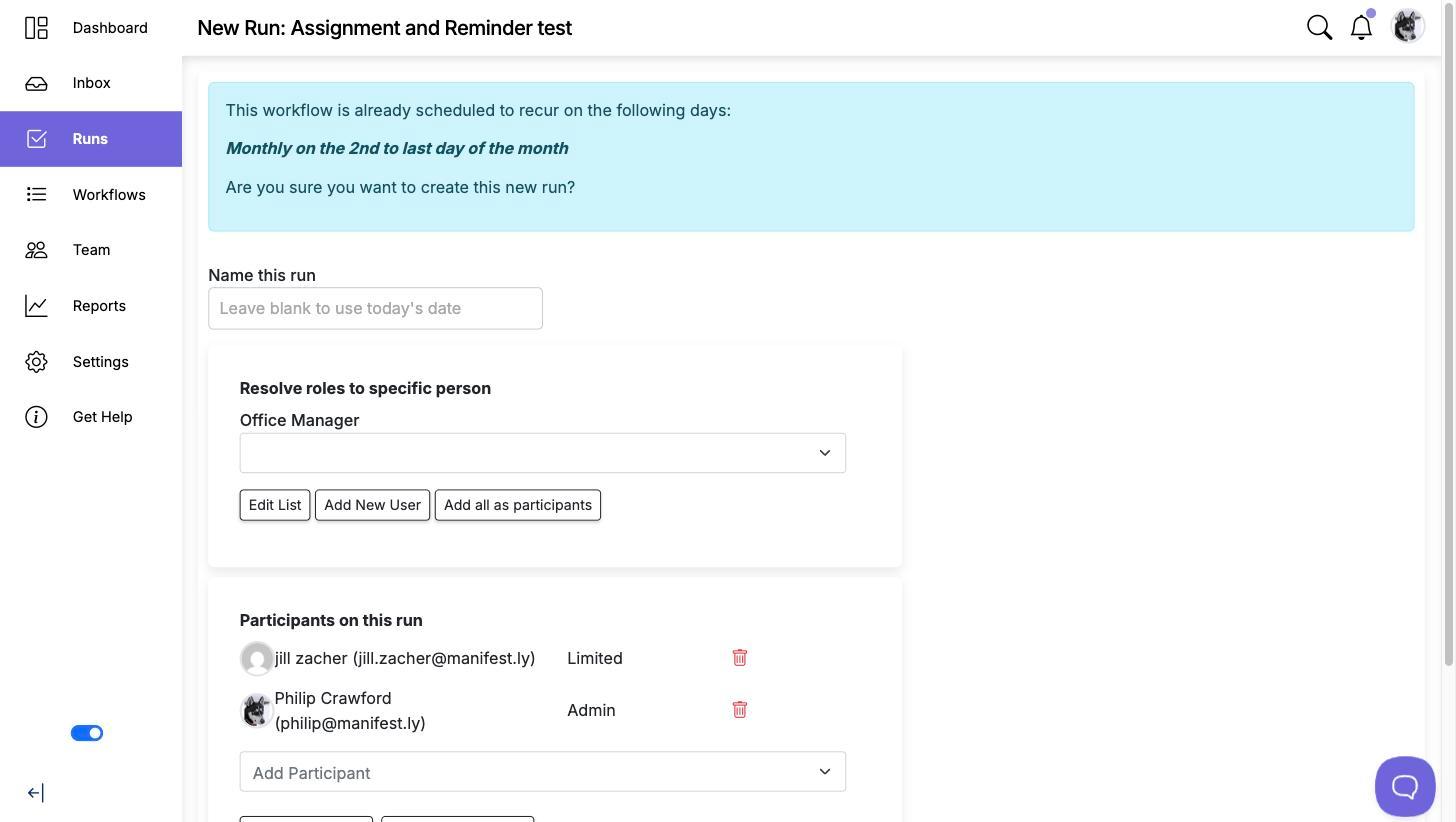
If the workflow assigns steps to roles, the run creation screen asks who fills each role this time. That is the moment to say that this month's audit belongs to Priya rather than to whoever did the last one.
Where a role maps to several people, you have a choice:
- Pick one person from the role's dropdown, and every step for that role goes to them.
- Add all as participants, the button beneath, and let the team sort out who takes which step once the run is going.
Add New User beside it invites someone who is not in the account yet, so a run is not blocked waiting for an invitation to be accepted elsewhere.
The second is the right call for shift work and for teams who decide among themselves. The first is better when someone has to be accountable by name.
Change one step in a run
Inside a run, steps are assigned to people, never to roles, because the run has to notify someone in particular.
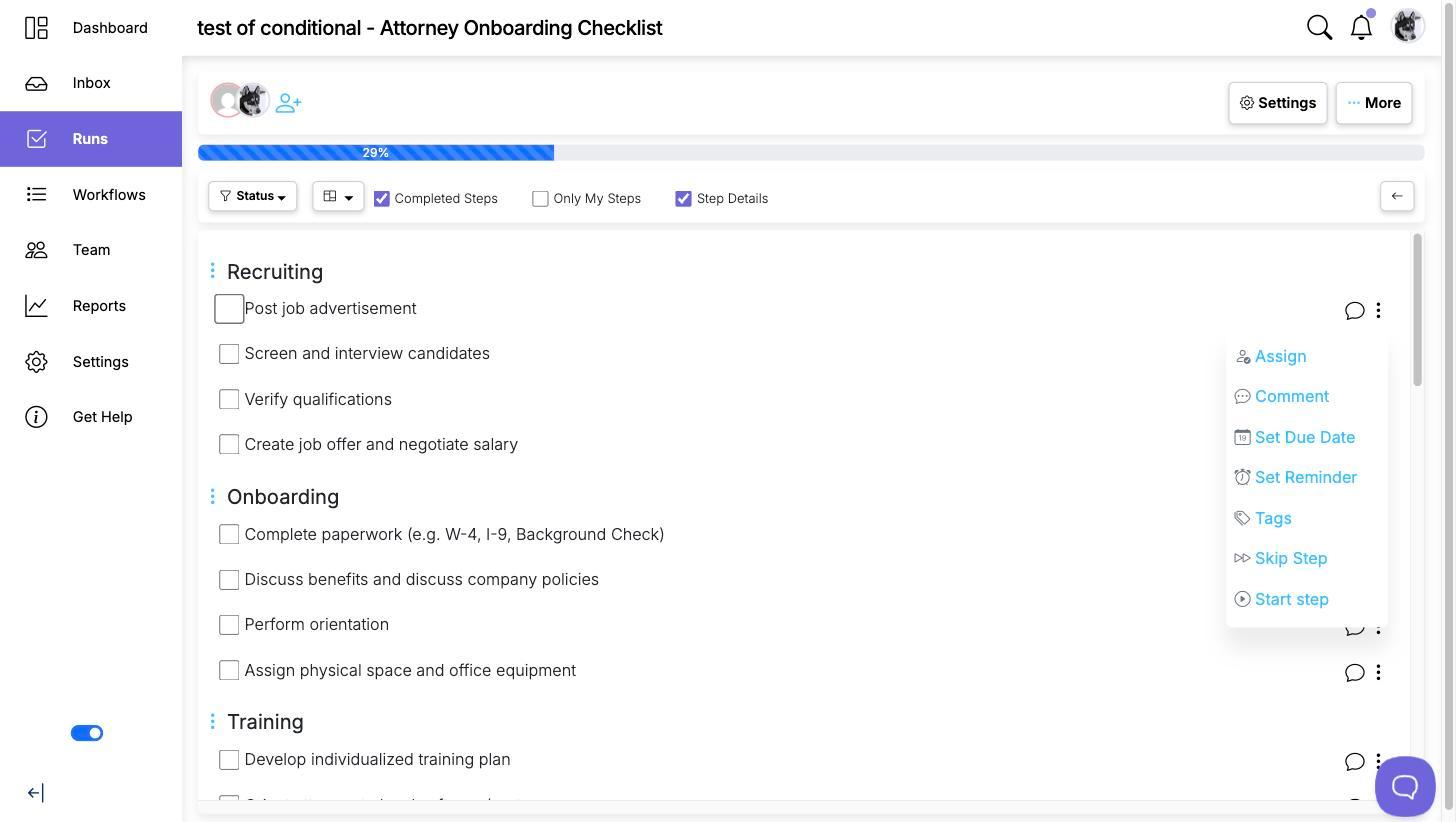
Open the step’s menu, the three dots at the end of its row, and choose Assign. The same menu holds Set Due Date, Set Reminder, Tags and Skip Step, so it is worth knowing for more than assignment.
This includes steps that came from the Initiator role. Being the person who started the run does not lock those steps to you, so hand them on if someone else is picking the work up.
Reassigning notifies the new person and takes the step off the previous one's list. It changes this run only.
Reassign a lot of steps at once
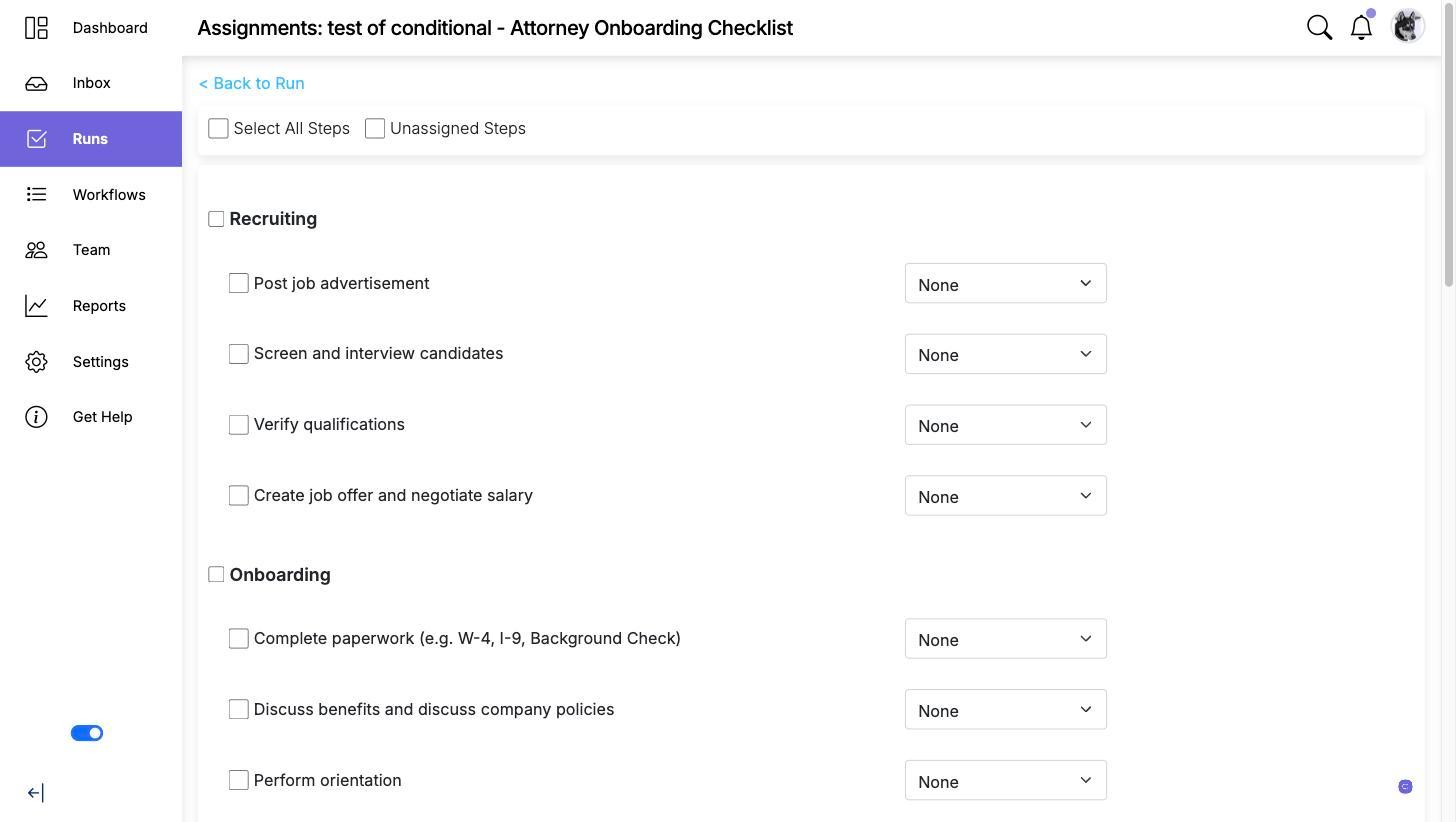
For anything more than a step or two, the run has a dedicated assignments page, reached from More on the run. It lists every step with its own assignee dropdown, grouped by section.
Two shortcuts at the top do most of the work: Select All Steps, and Unassigned Steps, which picks out exactly the steps nobody has yet. That second one is the fastest way to find the gaps in a long run before anyone notices them.
This is what to reach for when someone goes on leave mid-run, or when a run was created under the wrong role mapping and half of it is pointed at the wrong person.
See who has what
A long run gets hard to read. Filter the run's steps by assignee to see one person's work on its own, which is the quickest way to answer "what is still on me" or to check nobody has been left with everything.
Who can change assignments
Admins and Users can assign steps in a run. Members and Limited users cannot, so for them the assignment shows as information rather than as something to click.
When someone leaves
Moving one person's assignments across every run and department at once is a separate tool, and the right one for offboarding. Do not work through the runs by hand. See How to re-assign user assignments.
Video walkthrough
This video walks through assignments in Manifestly, covering both the workflow side and the run side.